
Last Updated on April 20, 2026 by Johann Holsinger
Is your TV playing picture first before the dialogue?
Even the most sophisticated home theater setups can suffer audio latency, and your modern soundbar can be no exception. We can easily blame the soundbar for this. We understand.
Imagine when you’re in it for your much-awaited movie time of the week. Suddenly, you see mouths opening, but the sounds come a few seconds late.
And the entire experience becomes a buzzkill.
You pause the video, play it again, pause it again, play again, and restart your devices. And still, the syncing feeling is getting worse.
It’s frustrating.
Don’t worry. It’s not the end of your eight-hundred-dollar soundbar.
We can tweak things up and fix that audio delay, which is not supposed to be your problem.
We’ll share a few hacks to move you out of the dreaded soundbar and TV not in sync.

How does your soundbar and TV get out of sync?
As it turns out, it’s not an unusual issue for modern soundbars.
Many people thought it was in the brand and blamed them for it. But in most cases, it’s about how the audio is processed and delivered to the soundbar.
If you have no idea, the way your TV and the media connect to the soundbar can highly affect how your audio and video will be processed and delivered.
So, I want to explain how the soundbar and TV can get out of sync during this time.
Your TV processes this information and sends the audio data to the audio device. If your TV speakers are activated, your TV can hold off playing the video until the TV speaker finishes processing the audio data.
The TV and speakers deliver the video and audio at the right time.
But when you introduce a new device like a soundbar, it may have to decode the audio data at a later time, and your TV may decode the video data a few seconds earlier. This phenomenon is the part where many audio delays occur.
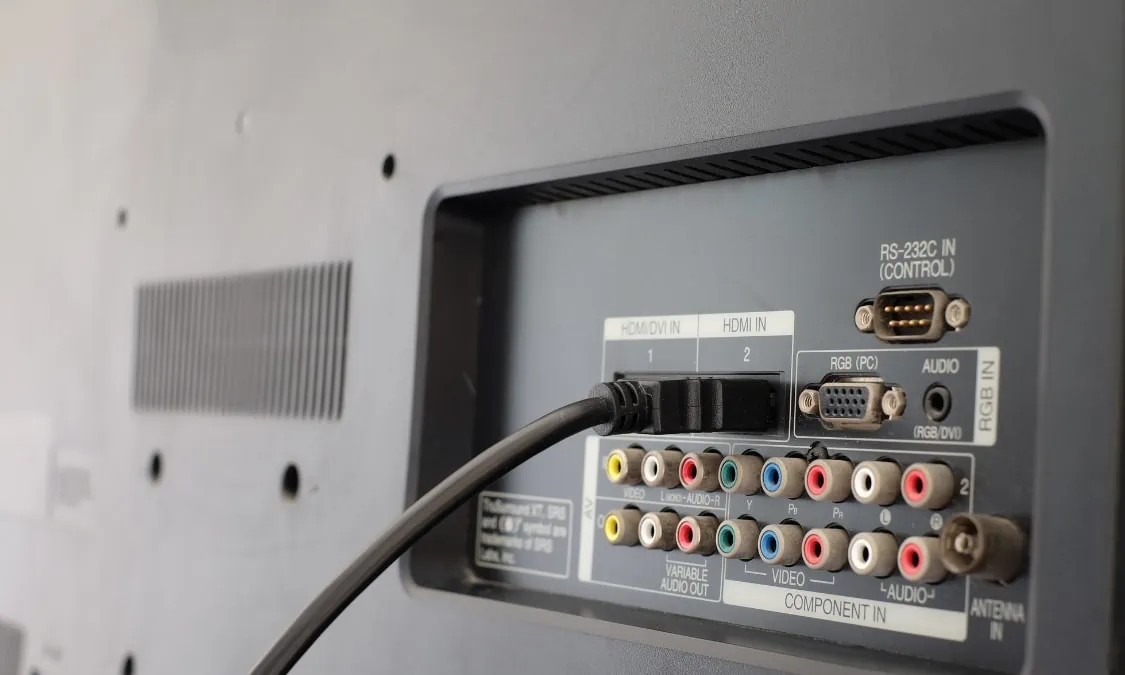
That’s just one scenario. If you are using a set-top box, an Amazon Fire, or a Roku TV, it’s going to be another device that sends signals and processes data.
In this case, your HDMI ARC handles this information and should synchronize audio and video without problems. The set-top box or device source will send the video and sound to the TV.
The TV, then, splits them up and submits the audio through the ARC with another HDMI cable.
When the audio has been processed, the TV has already displayed the video. This part is where the audio-video syncing problem exists.
Don’t worry. Even though it’s quite challenging to fix this, there are ways you can do it. And to get you ready, you may have to undergo many trials and errors before being able to fix this.
How do you fix the soundbar and TV not syncing?
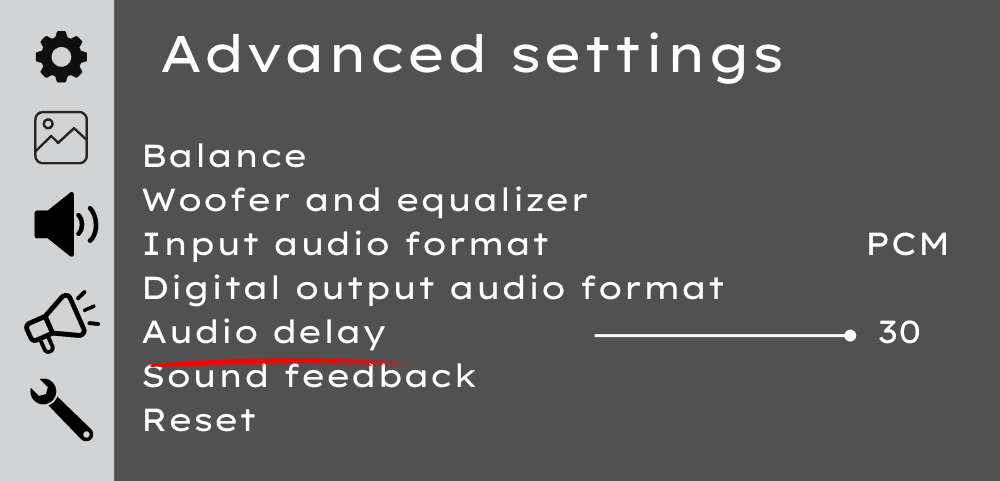
1. Adjust the Audio Visual Sync function on your TV or soundbar.
This solution is the first thing everyone does. The manufacturers have this A/V Sync feature that you can tweak from your TV, streaming device, or soundbar.
All you have to do is find this menu in your settings and try to match the sound and image. The menu will adjust the delay by milliseconds until the image and sound match.
Some brands have sliders. Some use left and right buttons. Some use the add and subtract buttons.
Some only offer one direction to adjust delay levels, which I find useless. I think you need one that can adjust in both directions.
For some brands, this can be tricky. But for some, this measure fixed audio delay problems.
2. Set the right audio format on your TV.
Let’s solve the problem with your input device. You have a Blu-ray, a gaming console, a set-top box, or any input device apart from your TV.
Your device will have different audio formats, depending on the content. And most likely, an HDMI cable will connect your input device to your TV, and your TV will connect to your soundbar with another HDMI cable.
If you are using a multi-channel soundbar, starting at 3.0, you should have surround sound and the format preferred must be in digital form.
To avoid confusing your TV from receiving and sending signals, it must take signals that your soundbar can process. So, you set the audio format on your TV.
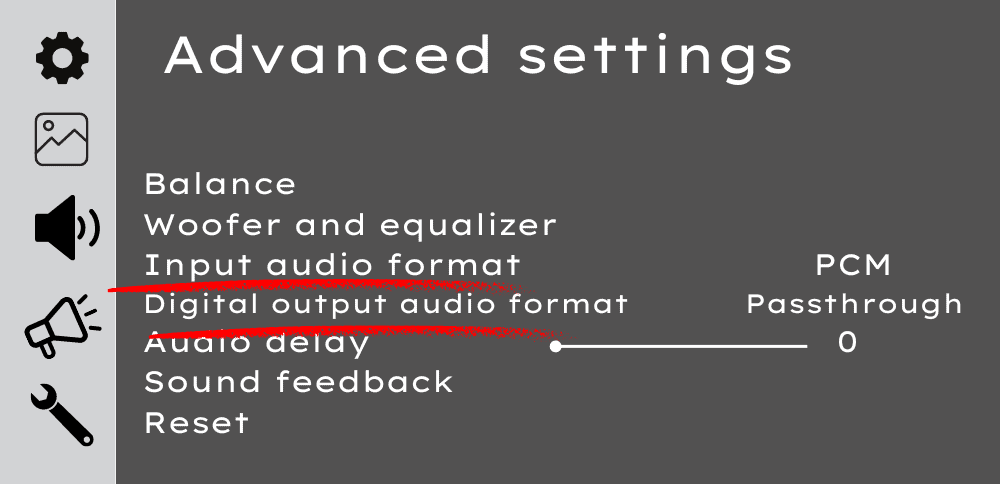
First, you will set the best input audio format.
If the signals sent to your TV have already been processed and it only has to come out of the soundbar, you can set the input audio format to PCM or Pulse Code Modulation.
However, the problem with this setting is that if your soundbar is multi-channel, it will lose the surround sound function. It won’t be an issue if your soundbar has two channels.
If you want your soundbar to process the input audio sent to the TV, you can choose the setting Bitstream. This function will enable your modern soundbar to use its channels and enable spatial sound production.
Second, you must set the best output audio format.
This function concerns the devices that will receive the signal from the TV and deliver the sound in digital format.
Choose PCM if there’s no higher available format for the content you are playing.
Choose Dolby Digital/ Digital + or DTS: X, if your content supports this format. You can get to enjoy the surround sound of your soundbar.
Sometimes, the TV has an auto-detect function, where it automatically detects the format of the content you are playing and automatically sets the output format.
You can choose Auto or Auto Detect settings if you see this function.
There is also a function called Passthrough or Auto-passthrough. This setting allows your content to be played on the soundbar without modification.
If auto-pass-through is activated, the TV bypasses its processing function and will deliver the audio just as how it receives it.
In most cases I have known, the Auto-passthrough fixed this problem.
3. Turn off A/V processing.
Some settings in your TV and soundbar take more milliseconds to send processed audio data, causing a delay in audio delivery.
Settings like equalizer settings or presets take more time to process audio because they modify the channels used in delivering sound.
Turn off those modes: movies, dialogue, sports, music, or virtual 3D. You’ll notice a significant reduction in audio delays.
4. Switch the source plug from your TV to your soundbar.
You can let the soundbar do the work instead of your TV by changing how you connect your TV and soundbar. You can plug your external source into your soundbar instead of your TV.
Your soundbar will transmit visual data to your TV via HDMI, while it also processes audio data. Your soundbar will naturally wait for your audio to be ready before it sends the video.
The only problem with this solution is that soundbars do not have many ports for input devices.
Also, this solution will not work if the content comes from the smart apps on your TV. So, I advise this solution only for those using external input devices.
But in many cases for external devices, this procedure solved the audio delay problems with the soundbar and TV.

Audio delays do not mean defective soundbars or TVs.
An audio delay does not necessarily point to soundbar or TV defects. The culprit, sometimes, lies in how the TV receives and processes the signals. These problems are common, and you can solve them with some troubleshooting and a few hacks.
By adjusting your audio settings, exploring your connections, or tweaking your device settings, you can enjoy the surround sound experience your soundbar has always promised.
So, don’t let audio delays spoil your movie night! With these solutions, you can easily handle audio delays like a pro and become the master of your home theater setup!
Need an audio upgrade? Take a look at our recommended high-end soundbars for your home theater.