- Nervous about your upcoming presentation?
- 1. Prepare your presentation.
- 2. Understand the contents of your presentation.
- 3. Test and prepare your equipment.
- 4. Use the right software and learn its features.
- 5. Create an engaging atmosphere.
- 6. Use visual graphics.
- 7. Practice.
- 8. Focus!
- 9. Mind your body language.
- 10. Wear proper attire.
- Bonus Tip!
We are independent, red buttons are affiliate links and approved purchases help support our guides at no extra cost to you. Learn more.
Last Updated on November 30, 2025 by Johann Holsinger
Nervous about your upcoming presentation?
Admit it! Video conferences can be a large room for awkward silence, and PowerPoint slides snooze-fests.
You can create an informative presentation and put in all your effort, but some may not relay their thoughts well, which often leads to misunderstanding.
In the digital age, where people have short attention spans, you must catch attention from beginning to end.
Video conferencing systems are great tools for expressing your ideas and presenting information. But how do you use technology to help captivate your audience and create a powerful impact?
In this article, we’ll share tips on conducting a successful video conference presentation, using your tools to your advantage, and conveying your message so everyone understands you, even online.

1. Prepare your presentation.
Whether it’s a proposal, a webinar, or an online lesson, you must come to your virtual meeting equipped with the proper knowledge. Set a clear goal of what you want to discuss or talk about in your demonstration.
No one starts with the slides first.
I would usually set the message I want to convey and list the ways to show it and support it with information. It’s my process when writing articles, so I don’t get lost. You can do this and use it as your guideline.
Start by outlining the key points of your presentation and then support it with verified information, stories, and experiences.
Decide on the visual graphics you will use or, maybe, prepare a script for each key point. Use flow charts to draft the phases of your demo and ensure they are in logical order.
From there, you can draft your slides like a professional. Also, do not forget to set a duration for your presentation.

2. Understand the contents of your presentation.
Know your stuff so well that you can answer everyone’s questions.
Conduct comprehensive research about the topics and information you share in the presentation. Nobody wants to mumble and fumble during their speech.
So, know your presentation by heart and present your stuff even when not looking at your slides.
Organize your thoughts so you can relay them smoothly. In reality, this should not be difficult if you research and prepare the slides yourself.
It’s easy to spot when the presenter is just reading their bullets.
But if you know your stuff well, you can share stories, information, and experiences, even if you don’t look at your slide.
3. Test and prepare your equipment.
It’s presentation day! Don’t let a scratchy microphone or lagging screen fail you!
Prepare the equipment you’ll use. If you are presenting to a remote team from your home, you need a camera, a computer, video conferencing software, reliable internet, a microphone, headphones, and a lighting setup.
If you’re presenting to a hybrid setup, a webcam with a microphone will not suffice.
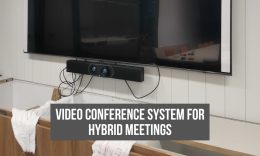
A modern video conferencing system bar will help you conduct engaging online meetings.
This system receives and delivers high-quality video and audio that elevate your presentation experience to a higher level by optimizing features from conference software.
Also, you will need a TV with an adjustable mobile stand or a projector with smart functionalities.
With the right equipment, you can have a minimal setup process. So make sure to test earlier before your demonstration time.
Set and test your microphone, camera, and speakers, and have a backup internet connection, just in case.

4. Use the right software and learn its features.
You can have an expensive video bar but it’s useless with the wrong online meeting application. My previous article lists the secret to finding a compatible video conference app for your video bar.
If you have no idea, these conference software come with features that will help you optimize your presentation and discussions. Among these features are:
- File sharing
- Whiteboard sharing
- Meeting scheduler
- HD resolution adjustment
- Smooth call-in
- Screen sharing
All these features make your online meeting more engaging.

5. Create an engaging atmosphere.
Another way to make your presentation successful is to entice your audience to engage in the discussion. You can start a poll survey or ask the audience in the chat box. It makes your discussion more personal by asking listeners to answer certain questions.
Also, acknowledge the participants when they start engaging.
For webinars, invite co-hosts to discuss subjects related to your goal. Doing this makes your meeting more exciting.
Include activities that will exercise their critical or creative thinking. I have attended lots of webinars, and only a few would have most of their attendees still present after two hours.

6. Use visual graphics.
Your slides are one example of visual graphics, but adding a story or emotional connections through images, videos, or infographics will draw more attention when discussing.
Also, avoid staying on one slide for too long and talking too much.
Use motion graphics to switch to new media and transition from your slide to your face on camera. Use animated graphics and share your whiteboard to make an impression.

7. Practice.
The more you understand your material, the more it becomes smoother to present and discuss.
So, practice. I suggest recording a video of your practice.
Check the phases that need improvement. Is your voice clear? Are your transitions smooth? Are you comfortable with your navigation? Do you spend more time on one slide?
With constant practice, you become more confident in your material, and you start to discuss your points naturally.

8. Focus!
Whether you are practicing or presenting, you must stay away from distractions.
Remove tabs you do not need. Exit your social media accounts. Set your phone to silent mode.
Focus on the most important content to include in your slide and keep it short, concise, but engaging.
Do not put too much information on each slide, so you can encourage your audience to listen to you.

9. Mind your body language.
Your eyes say a lot. And your facial expressions will reflect your sincerity. Your smile brightens up anyone.
Let your body language speak properly and use it to connect to your audience.
Look directly at your camera lens and let people see your facial expressions.
When you practice, practice your facial expressions too. Check them on your practice video and refine your gestures if needed.

10. Wear proper attire.
Before you come up with this presentation, you already know the group of people you will talk to.
So dress up accordingly and be presentable. Also, pay attention to your grooming and do not block your face.
Bonus Tip!
Slow it down.
Take time to breathe and deliver your statements at the right time.
It’s easy to be excited at what you’re presenting, get caught up in the momentum, and rush to your content. So slow it down.
Allow your audience to absorb the information and let them process it. So they can think clearly and form questions.
Slowing down helps you emphasize your points, while sending a clear message, that connects to your audience.